


Add Text on Photo - Text Art
4.41.60K Reviews
App Specs
- Version
- 1.4.98
- Updated On
- License
- Free
- Downloads
- 10,000,000+
- Developer
- Eco Mobile Editor
- Categories
- Photography
- Platform
- Android
Screenshots
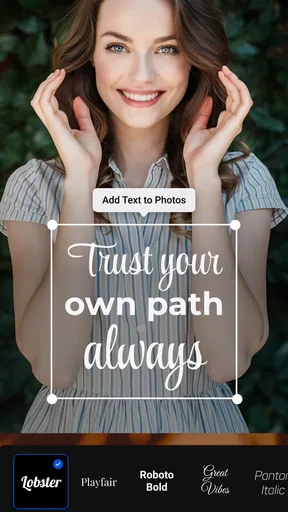
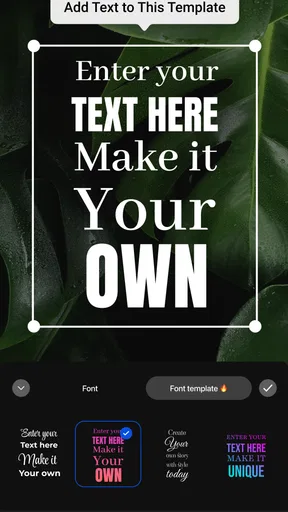
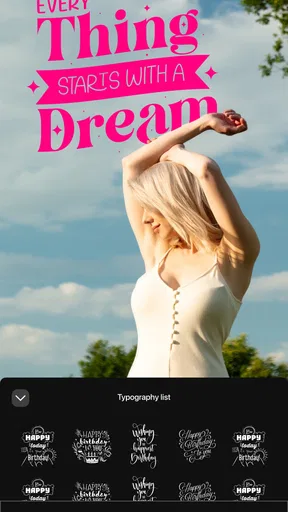
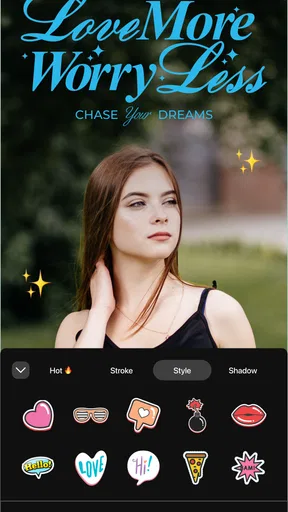
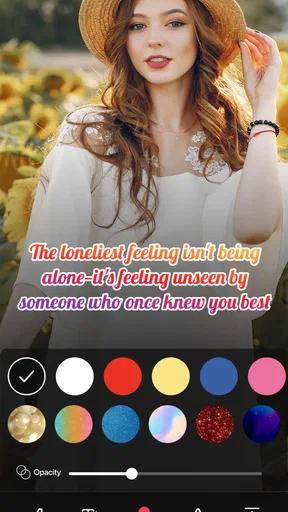
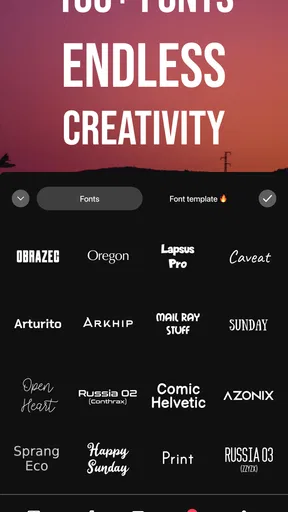
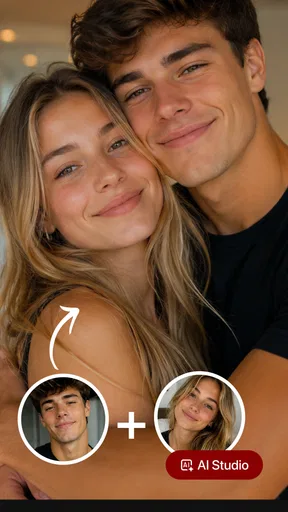
 Analysis by AppCompare
I usually reach for a photo editor when I need one clear result: make an image understandable, attractive, and ready to share without spending half an hour learning a complicated tool. Add Text on Photo - Text Art takes that focused approach. It is a free photography app from Eco Mobile Editor built around placing text on images, decorating it, and turning an ordinary picture into something suitable for a message, post, invitation, quote, or small promotional graphic.
After using it, my impression is that this is less of an all-purpose photo studio and more of a quick lettering workspace. That distinction matters. If you want advanced retouching, layered compositing, or detailed color correction, you will probably outgrow it quickly. If your main task is adding a readable title, a name, a short caption, or a decorative phrase to a photo, its narrow focus can be a real advantage. I found the experience easiest to appreciate when I treated it as a text-first tool rather than expecting a complete replacement for a larger editor.
How the current version fits into everyday photo editing
The current release is version 1.4.98, and the app has been available since February 27, 2018. That history gives it a more established feel than a newly launched experiment. It has reached over ten million installs, with an average rating of 4.4 from around one hundred fifty-seven thousand ratings and roughly one thousand six hundred written reviews. Those figures suggest that the simple text-on-image idea has found a substantial audience, although popularity alone does not make it the right editor for every person.
The first thing I noticed is how quickly the app gets to the central task. Instead of presenting a large collection of unrelated editing tools, it keeps attention on the relationship between the image and the words placed over it. That makes sense for a birthday greeting, a social post, a small announcement, or a quote card. I could think about wording, placement, contrast, and style without constantly moving through tools that had nothing to do with the result I wanted.
Its category is photography, but I would describe its practical role more specifically as a lightweight graphic-making app. The photo is the background; the text is the main design element. That makes it useful for people who want more control than a basic gallery caption provides, while avoiding the heavier workflow of a full design application.
What I would use it for first
A realistic everyday example is preparing a quick image for a family group chat. I might take a photo of a meal, add the dish name and a short note, then adjust the lettering so it remains visible without covering the important part of the picture. The app suits that kind of job because the goal is communication, not a polished advertising campaign.
I also see value for small sellers, teachers, event organizers, and anyone who repeatedly needs simple visual notices. A product photo with a brief label, a classroom image with a reminder, or a personal invitation can be prepared directly on a phone. The important trade-off is that the result depends heavily on restraint. Adding too many decorative elements can make a simple image look crowded, so I generally get better results by choosing one strong text treatment and leaving enough empty space around it.
Worth Reading Before You Choose

EA SPORTS FC Mobile 26 Is a Bigger Football Game, but It Takes Time

Flipboard Shows What News Apps Must Do Beyond the Feed

Switching to Android Auto Means Rethinking Your Driving Routine

Google Calendar Makes a Crowded Week Easier to Manage

Ludo King Makes the Most of the Minutes Between Plans

Baby Panda World Brings Quick Play to Modern Phones, but Its Game Library Feels Busy
Another useful workflow is to prepare several variations of the same picture. I can duplicate the basic idea mentally, then change the wording or placement for different recipients or platforms. This is more practical than opening a full desktop-style editor when the changes are small. However, anyone producing a consistent series of branded graphics may eventually prefer a tool with reusable templates, precise alignment controls, and broader export management.
Text placement is more important than decoration
The most valuable skill with this app is not finding the fanciest style. It is learning to protect readability. A bright photograph can swallow thin lettering, while a dark area can make a heavy style feel too strong. I recommend placing text over a relatively calm part of the image first, then adjusting the size before experimenting with decoration. This simple order prevents the common mistake of choosing an attractive style that becomes difficult to read once it sits on a busy background.
For a portrait, I would avoid covering eyes and facial expressions unless the text is intentionally part of the composition. For landscape photos, the sky or an open wall often gives lettering room to breathe. When the background is visually busy everywhere, a short phrase is usually more successful than a long sentence. The app makes adding words easy, but it cannot solve a crowded composition automatically; that judgment still belongs to the person editing.
I also found that line length deserves attention. A short headline can look balanced in the center, while a longer message may need smaller lettering or a different position to avoid dominating the image. Rather than shrinking everything until it fits, I would edit the wording itself. Removing unnecessary words often improves the picture more than adding another effect.
Where it differs from broader alternatives
Compared with a standard gallery editor, this app gives text a more central role. Gallery tools are convenient for cropping, rotating, and making quick light adjustments, but their caption features are often secondary. Here, the lettering is the reason to open the app, so someone who regularly creates quote images or greeting graphics may find the workflow more direct.
Compared with a full design platform, the advantage is speed and lower mental overhead. A larger design app may offer templates, multiple layers, brand systems, detailed alignment, and extensive asset libraries. Those features are valuable when I am building a campaign or a carefully repeated visual identity. They can also slow down a one-minute task. Add Text on Photo - Text Art makes more sense when I want to get a single image finished without managing a whole design project.
It also occupies a different space from a dedicated retouching editor. If my priority is removing distractions, correcting skin tones, shaping light, or making selective adjustments, I would edit the photo elsewhere first and use this app afterward for the lettering. That two-step approach is often more sensible than asking one focused tool to handle every part of the image.
What the app’s development means for people using it now
The release history shows a product that has been maintained over several years, and version 1.4.98 is the clearest current marker of that ongoing state. I would not interpret the version number as proof that it has become a professional design suite. Instead, it suggests continuity around its original purpose: making text-based photo edits accessible on a phone.
For an existing user, that continuity is reassuring in a practical way. Someone who already understands the basic workflow is unlikely to feel as if the app has abandoned its central idea in favor of unrelated features. At the same time, a long-running app can feel less exciting than a newer editor built around fashionable templates or social-media automation. I think the benefit here is familiarity: if the simple approach already suits your needs, there is less reason to replace it merely because another app looks busier.
New users should approach the current version with realistic expectations. The store summary emphasizes stylish text, quick beautification, and creating art in seconds, but the quality of the final image still depends on the source photo and the choices made during editing. A strong result usually comes from a clear image, concise wording, appropriate contrast, and careful placement. The speed is most noticeable when the design decision is already simple.
Free access and the role of purchases
The app is free to download, which makes it easy to test before deciding whether it belongs in your regular toolkit. In-app purchases range from $1.39 to $65.60 per item. Because of that wide range, I would avoid assuming that every style or extra is included at no cost. I would check the purchase screen carefully before confirming anything, especially if I only need occasional text overlays.
For casual users, the free starting point may be enough to judge the core workflow. For frequent creators, paid additions could make sense if they provide styles that match a particular visual taste or recurring project. My advice is to begin with a real task rather than browsing effects indefinitely: choose one photo, write the exact message you need, and see whether the available editing path produces something you would actually share.
This pricing structure also changes how I compare it with alternatives. A completely free basic editor may be better for someone who only needs plain captions, while a subscription-based design service may offer more consistent professional assets for regular business work. Add Text on Photo - Text Art sits between those choices: more focused than a basic caption tool, but not automatically the best value for someone who needs a full library of design resources.
Small techniques that improve the finished image
One technique I recommend is creating a visual hierarchy before touching decorative options. I decide which word matters most, then make that part easier to notice through size or placement rather than styling every word equally. This is especially useful for event details, where the date or location needs to be found quickly.
A second technique is to preview the image at the size people will actually see it. Text that looks comfortable while editing can become too small in a chat thumbnail or social feed. I would zoom out before saving and ask whether the message is still readable at a glance. If it is not, shortening the phrase is often better than forcing a large block of text onto the photo.
A third is to edit the image in two passes. In the first pass, I concentrate only on wording and position. In the second, I refine the visual treatment. This prevents decorative choices from distracting me from the basic question of whether the message belongs where I placed it. It is a small workflow change, but it helps keep quick edits from turning into cluttered ones.
For repeated personal projects, I would also keep a small set of preferred combinations in mind: one restrained treatment for bright photos, one stronger treatment for dark backgrounds, and one simple option for images that already contain a lot of detail. Even without turning the app into a formal brand system, this creates more consistency across several posts or announcements.
Limitations I would consider before installing
The focused design is also the main limitation. If I want to remove objects, reshape a photo, perform detailed color correction, or build a composition from many separate elements, I would choose another editor. This app can be part of that workflow, but I would not make it the only tool on my phone for serious image work.
There is also a creative ceiling for users who need exact control. Casual text placement does not require professional layout tools, but business graphics often benefit from precise spacing, repeatable dimensions, and dependable consistency across a whole set of images. When those details matter, a more advanced design application is likely to save time in the long run, even if the first edit takes longer.
The decorative side can create another kind of friction. A large selection of visual treatments may encourage experimentation, yet more choice does not automatically improve a picture. I find the app most convincing when I use it to clarify an image rather than cover it with effects. People who prefer very minimal editing may appreciate the direct text function but ignore much of the artistic styling.
Device compatibility is also worth checking before relying on it for an older phone, since the app requires Android 8.0 or later. For supported devices, that requirement is not especially demanding, but it can matter if someone is trying to revive an older handset or install the app for a family member.
Who should use it, and what to watch over time
I would recommend it to students, families, casual creators, small sellers, and social-media users who often need to place readable, decorative text on a photo without opening a complex design suite. It is particularly suitable for one-off images where speed matters more than a carefully managed collection of templates and assets.
I would suggest skipping it as a primary editor if your work depends on professional retouching, detailed layout control, advanced branding, or large batches of nearly identical graphics. In those situations, the usual alternatives may offer a better long-term workflow. This app can still be useful as a quick lettering step, but it should not be judged as though it were trying to replace those specialized tools.
What I would watch in future updates is not simply whether more effects appear. The more meaningful improvements would be anything that makes text placement more predictable, keeps designs consistent across multiple images, and reduces the effort needed to refine a finished composition. Those are the areas that would expand its usefulness without weakening the straightforward experience that makes it appealing now.
My final view is positive but specific: Add Text on Photo - Text Art is a practical choice when the words are the main reason you are editing the picture. It is free to try, available for Everyone, and supported by a large user base, while its current version keeps the product centered on a clear task. I would install it for quick greetings, quote cards, labels, and simple announcements. I would reach for something else when the photo itself needs serious correction or the design must meet professional production standards.
In everyday use, its success comes less from dramatic editing power and more from removing unnecessary steps. Start with a short message, choose an uncluttered area, check readability at a small size, and resist decorating every available space. Used that way, the app does exactly what I need from a focused mobile editor: it helps turn a normal photo into a clear, personal visual without making the process feel like a design assignment.
Pros
- Offers many fonts and text styles for creative photo designs.
- Text can be adjusted with color
- size
- spacing
- and alignment controls.
- Supports adding multiple text layers to one image.
- Useful templates help create social media posts quickly.
- Simple interface makes basic editing accessible to beginners.
Cons
- Some fonts
- effects
- or templates may require in-app purchases.
- Free exports may include ads or other interruptions.
- Advanced photo-editing tools are limited compared with full editors.
- Too many design options can make the interface feel crowded.
- Export quality and available formats may vary by device.
FAQs for Add Text on Photo - Text Art
What is Add Text on Photo - Text Art used for?
Add Text on Photo - Text Art is designed for creating images with custom typography, captions, quotes, announcements, and social media graphics. After selecting a photo or blank canvas, you can type your message, adjust its position, change the font and color, and add decorative elements. It is useful for both quick personal edits and more creative text-based designs.
Can I customize the text and its appearance?
Yes. The app provides tools for modifying the main visual aspects of your text, including font style, size, color, alignment, spacing, and placement on the image. Depending on the version installed, you may also find options such as shadows, outlines, backgrounds, stickers, or text effects. These controls make it possible to create anything from simple captions to more elaborate text art.
Does Add Text on Photo - Text Art work with photos from my device?
The app generally allows you to import pictures from your device gallery and use them as the background for your design. You can also create text on a plain or colored canvas when you do not want to use a photograph. Before installing, check the requested permissions, since access to photos or media may be necessary for importing images and saving completed projects.
Can I save and share the images I create?
After finishing a design, you can normally save the result to your device in a standard image format and share it through compatible applications such as messaging services, email, or social networks. Export quality and available formats can vary by device and app version. It is worth checking the preview carefully before saving, especially when working with small text or detailed backgrounds.
Is Add Text on Photo - Text Art free to use?
The application may be available as a free download, but some features can depend on advertising, in-app purchases, or a premium version. Advanced fonts, special effects, extra design tools, or an ad-free experience may not be included in the basic edition. Review the store listing and purchase terms before downloading if you want access to every editing option without restrictions.


